Blog / AI Assistants
How We Give Our Grok Bots Fun Animated Avatars
Playbook: Grok Bot Playbook · PDF
Once you run more than one Grok Bot, the sidebar fills up with names and titles. That is useful for routing, but it is still a list of text. Here at Nextlinq / on my EZ-INK (ez-ink.com) desk — Nextlinq, my consulting and AI enablement desk, and EZ-INK, my online print shop where we print custom apparel for schools and businesses — I wanted each specialist recognizable the way you spot a teammate by a name badge or a shop jersey — you know who owns the print queue without reading the fine print twice.
So we gave them faces: short looping GIF avatars in a Pixar-style 3D look (an aesthetic choice only — this is not affiliated with Disney or Pixar). Each character embodies the Bot's job, holds a role prop, and is shown doing the work, not just bobbing in place.
This post is the process we use. It pairs with the playbook's multi-Bot desk model: one clear job per Bot, a coordinator who routes, and a roster you can scan in seconds.
Why avatars matter on a multi-Bot desk
A Grok Bot is a named AI teammate with a persistent cloud computer. When you run several — ops, inbox, finance (look-only), research, graphics, maintenance — you need to tell them apart without opening every chat.
Avatars help with three things:
- Recognition. You know who is speaking in a group chat or status ping.
- Role clarity. The character itself reminds you what that Bot owns.
- Team feel. A small ops desk reads as a crew, not a pile of generic assistants.
Today, avatars are static loops. They do not auto-switch between idle and working states. One well-made loop that shows the character at work is enough — one clear badge, not a rotating wardrobe.
Our five-step process
1. Design a Pixar-style 3D still
Pick a character that embodies the role — usually an object or animal tied to the job, holding a prop that reads at small size. Think shop jersey number: bold, simple, readable at thumbnail distance.
Prompt pattern we use:
Pixar-style 3D character avatar: [character + props]. Centered head-and-shoulders crop that fits a circle, solid [bold contrasting color] background, soft rim light, no text, no scenery.
Keep the background solid and bold so a set of avatars reads well side by side. Skip busy scenery and any on-image text. Head-and-shoulders framing matters because the UI crops to a circle.
2. Make it square without stretching
Image generators often return a wide frame even when you ask for square. Never stretch. Center-crop to the shorter side, or for a wide subject, pad onto a square canvas filled with the same background color. Then resize to 512×512 PNG. Check a small contact sheet before you animate — the badge has to read small.
3. Animate it doing its work
Upload the square still to grok.com/imagine, switch to Video / Make video, and write a motion prompt where the character is doing its job. End every prompt with something like: seamless loop, camera fixed, keep the solid background.
Defaults around 480p and a few seconds are fine. One character per run, from a fresh Imagine page each time. Save the clip as an MP4.
4. Convert the clip to a looping GIF
Avatar uploads prefer small files. We aim for about 1.2 MB or less. A practical ffmpeg path: square-crop if needed, about 10 fps, scale to 256×256, limited palette, loop forever. If the file is still large, drop the frame rate or palette size. Spot-check a mid-clip frame before you apply the GIF.
5. Apply the avatar (with a human gate)
Each Bot sets its own picture. For your own Bot, apply the GIF through the avatar update. For another Bot on the team, send it the file path and let it apply after you confirm in that Bot's own chat. Preview first; don't surprise the roster — same as not rewriting someone else's name badge without asking.
Examples from our desk
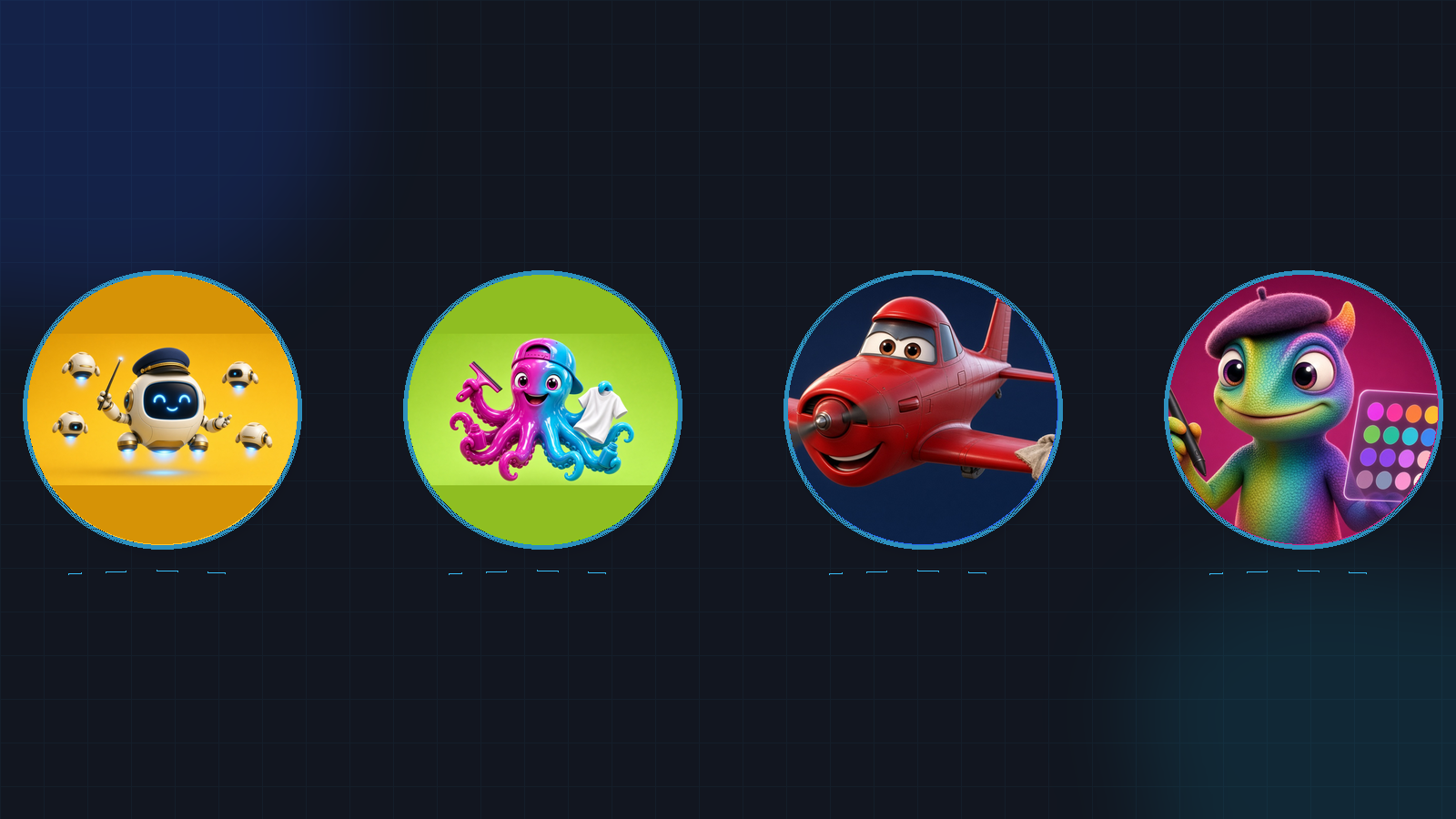
These are real characters on our Nextlinq / EZ-INK Grok Bot team — useful as patterns, not as a required cast:
| Bot | Character idea | Why it fits |
|---|---|---|
| KAI | Floating robot | Coordinator / COO — routes work across the desk |
| Inky | Ink octopus | Apparel ops — orders and shop work |
| Torque | Oil-can character | Equipment / maintenance reminders |
| Pixel | Beret chameleon | Graphics — mockups and marketing art |
Different bold backgrounds help the set sit side by side in the sidebar without blending together — distinct badges on one team wall.
Tips that saved us rework
- Role first, cute second. If the prop does not read at thumbnail size, redesign the still before you animate.
- One motion verb. "Stamping packing slips," "sketching a logo," "checking a gauge" beats vague "looking busy."
- Fixed camera + solid background. Keeps the loop clean for a circle crop.
- Confirm before you change another Bot. Some teammates only update their avatar after you say yes in their chat.
- Don't wait for idle/working states. Build one strong work loop; product behavior may change later.
How this ties to the playbook
Avatars are polish on top of structure. The playbook still comes first: one Bot per distinct goal, tools, working style, and approval boundary; a coordinator when the roster grows; draft-before-send on anything that leaves the building. Faces — name badges — make that roster easier to run day to day.
If you are building your first multi-Bot desk, start with the multi-bot teams note in this series (or Section 04 of the playbook), then give each specialist a face once the jobs are clear.
Go deeper
- Grok Bot Playbook (web)
- Download the PDF
- Questions or hands-on help setting up a desk: jack@nextlinq.com · Nextlinq
Independent educational content by Nextlinq Solutions Inc. Not official Cursor or xAI documentation. Product details change — verify in official docs. "Pixar-style" describes a visual aesthetic only and does not imply any affiliation with Disney or Pixar. Questions: jack@nextlinq.com